Scripts
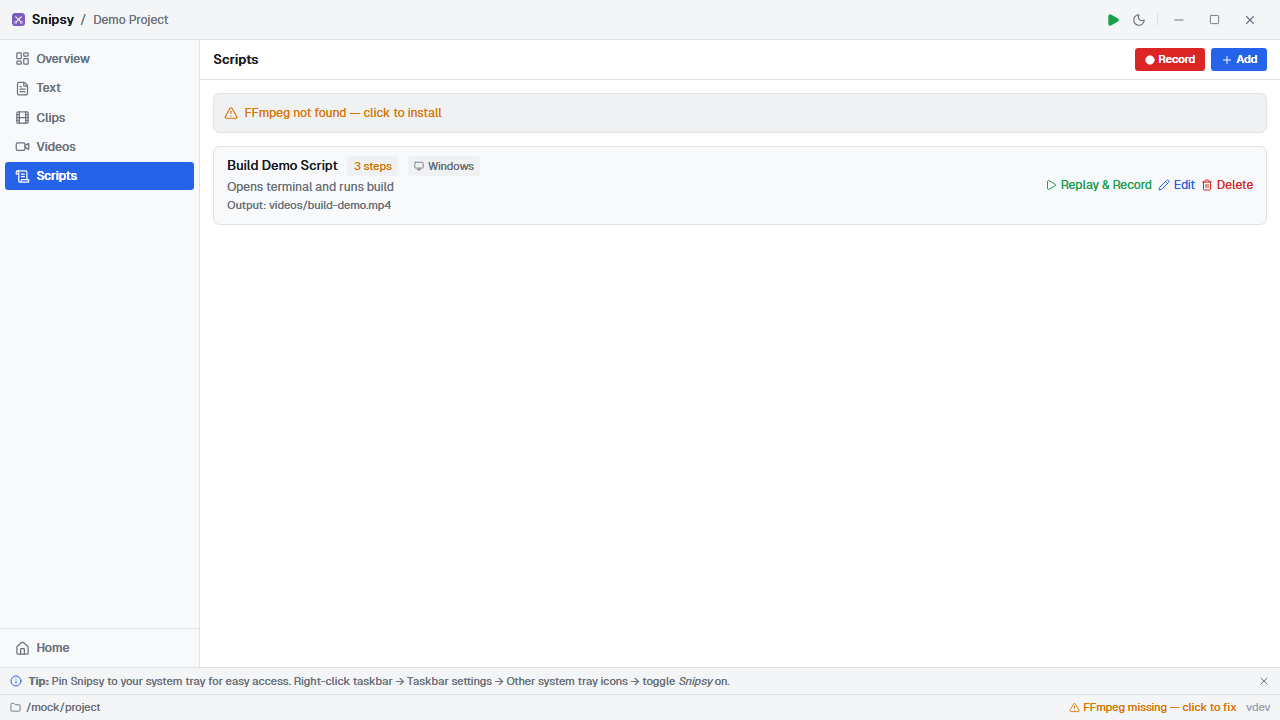
Scripts let you automate desktop interactions — launching apps, typing text, pressing keys, clicking, and scrolling — and optionally record the screen while the script runs.
Script Steps
Section titled “Script Steps”A script is a sequence of steps, each performing a specific action:
| Step Type | Description | Parameters |
|---|---|---|
| launch | Open an application or URL | target |
| type | Type text into the active window | text, delay (ms) |
| keypress | Press a keyboard shortcut | keys |
| click | Click at screen coordinates | x, y, relative |
| scroll | Scroll in the active window | direction, amount |
| move | Move the cursor | x, y |
Creating a Script
Section titled “Creating a Script”Navigate to the Scripts view and click +. Add steps in order — they’ll execute sequentially when you run the script.
Recording Scripts
Section titled “Recording Scripts”Snipsy can record your interactions as you perform them:
- Click the record button to start capturing
- Perform your actions normally — Snipsy records mouse clicks, keystrokes, and cursor movement
- Click stop to finish recording
- The recorded steps appear as a script you can edit and replay
Screen Capture
Section titled “Screen Capture”When running a script, you can enable screen recording via FFmpeg. The script actions play out while the screen is captured to a video file.
Platform Notes
Section titled “Platform Notes”Scripts include a platform field indicating which OS they were recorded on. Since screen coordinates and application paths differ between platforms, scripts are generally platform-specific.