Video Clips
Video clips let you play pre-recorded content as fullscreen overlays during your demo — perfect for showing build processes, deployments, or any sequence you don’t want to do live.
Importing Videos
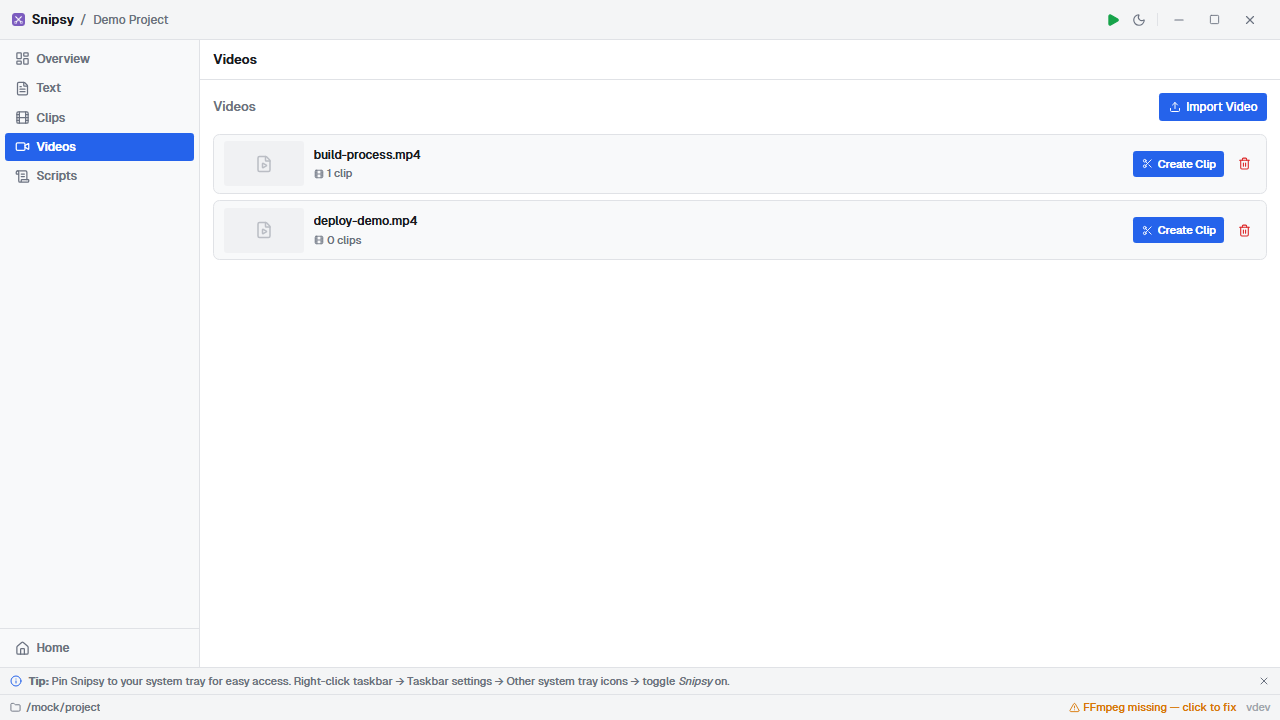
Section titled “Importing Videos”Navigate to the Videos view in the sidebar. Click + to import a video file (.mp4, .webm, .mov). The file is copied into your project’s videos/ directory.
Creating Video Clips
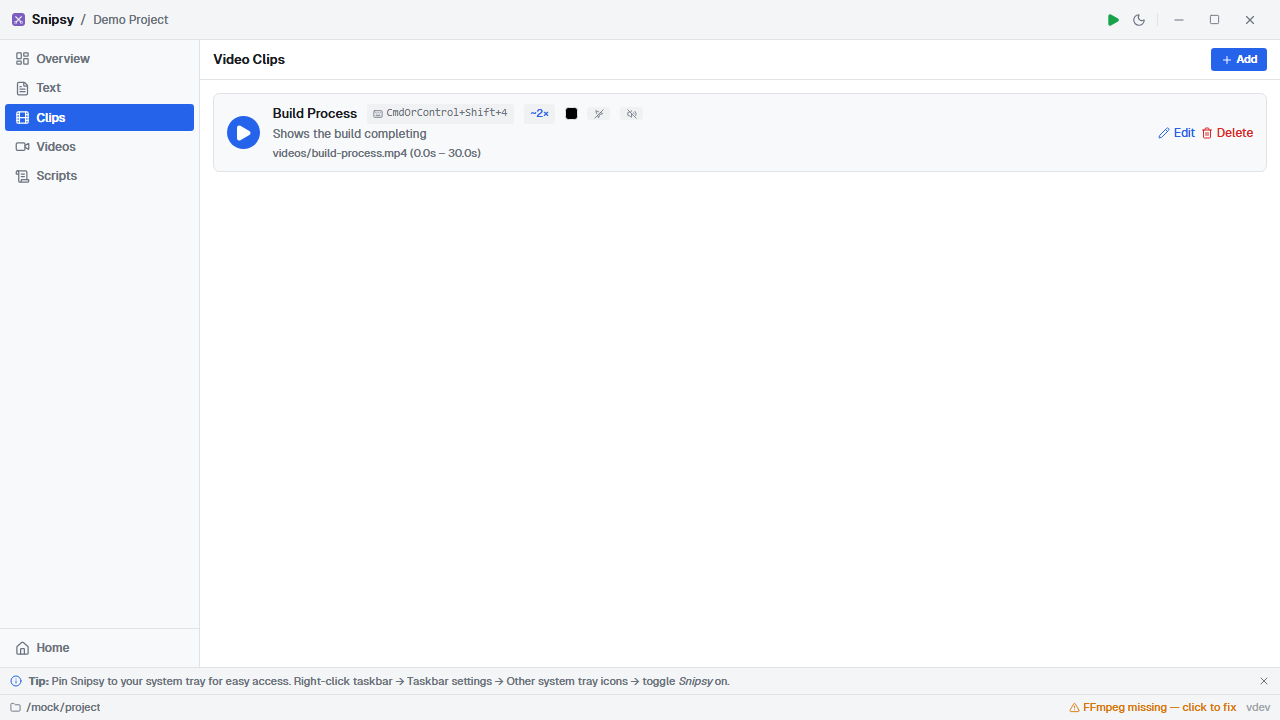
Section titled “Creating Video Clips”From the Clips view, click + to create a new video snippet. The clip editor lets you:
- Select a source video from your imported library
- Set start and end times using the visual timeline
- Assign a hotkey for triggering playback
- Configure playback settings (speed, mute, cursor, etc.)
Clip Settings
Section titled “Clip Settings”| Setting | Description | Default |
|---|---|---|
| Speed | Playback rate (0.25× to 4×) | 1× |
| Muted | Suppress audio during playback | Yes |
| Hide Cursor | Hide the mouse cursor during playback | Yes |
| Click to Play | Show first frame, wait for click to start | No |
| End Behavior | close (dismiss) or freeze (hold last frame) | Close |
| Background Color | Letterbox color for aspect ratio mismatch | Black |
| Target Monitor | Which display to play on | Primary |
Audio Control
Section titled “Audio Control”By default, video clips are muted since live demo presentations typically have their own narration. Toggle the mute setting off if your clip has important audio (e.g., a product demo with voiceover).
The mute status is shown with a volume icon in the clips list and hotkey overview.