Quick Start
Get from zero to your first hotkey trigger in under 2 minutes.
Create a Project
Section titled “Create a Project”-
Launch Snipsy — the welcome screen appears.
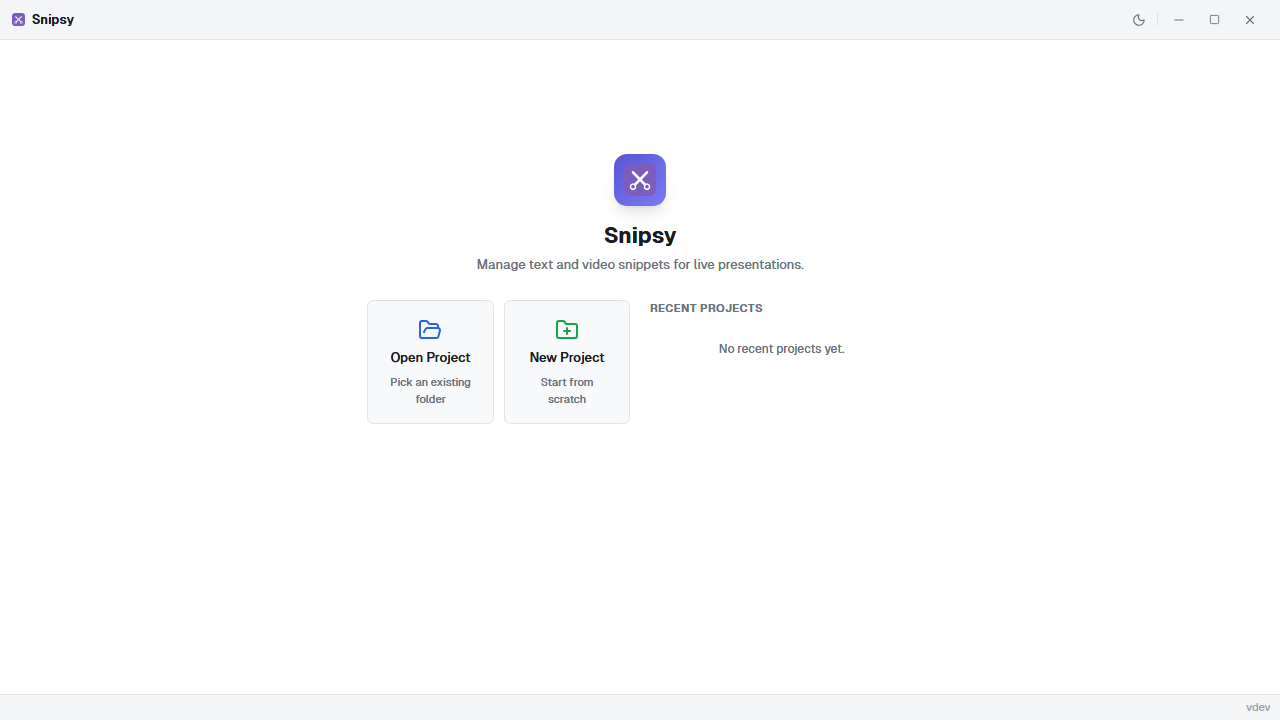
The welcome screen — create or open a project -
Click “New Project” — enter a name and choose a folder. Snipsy creates a project directory with a
project.jsonfile. -
You’re in! The hotkey overview dashboard is now visible (empty for now).
Add a Text Snippet
Section titled “Add a Text Snippet”- Click Text in the sidebar to go to the text snippets view.
- Click the + button in the header.
- Fill in the form:
- Title:
Hello World - Hotkey: Click the capture field and press your desired shortcut (e.g.,
Ctrl+Shift+1) - Text:
console.log('Hello, world!'); - Delivery: Choose
fast-typeorpaste
- Title:
- Click Save.
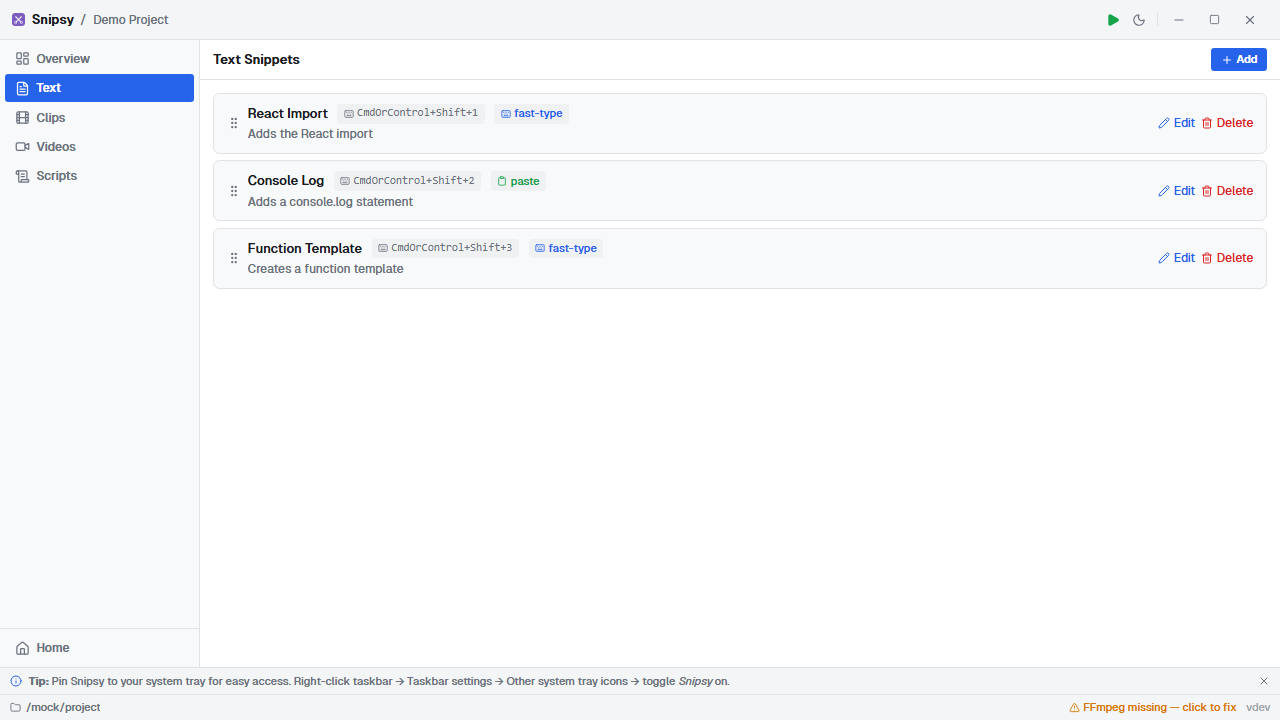
Enter Demo Mode
Section titled “Enter Demo Mode”- Click the green play button in the title bar.
- Snipsy minimizes to the system tray — your audience can’t see it.
- Open any text editor and press your hotkey — the text appears!
- Right-click the tray icon → Exit Demo Mode to return.
Next Steps
Section titled “Next Steps”- Text Snippets — delivery modes, type delays
- Video Clips — import and trim video
- Demo Mode — hotkey behavior and tray integration